
Useful tips
How to connect cameras to your phone: error-free engineering instructions


Connecting a camera to a smartphone is not about «going into the app and pressing one button,» as is often promised in advertising. In fact, it is a normal technical job where you need to deal with the network, power, and security. If everything is installed and configured correctly, the video from your home, office, or warehouse is downloaded literally 5–10 seconds after you open the app. But if you make a mistake somewhere with the IP address, power, or cloud settings (P2P), the picture will start to freeze constantly or even give a connection error.
As practice shows, in 80% cases, everything breaks down not because of the camera itself, but because of problems with the router, recorder or mobile Internet. Usually, users are faced with the fact that the device is constantly "offline", instead of video there is a black screen (although the sound may be), the QR code is not scanned or remote access completely disappears, as soon as you leave the house. All this is treated with a simple step-by-step check: first, we check whether there is power, then we check the local network, cloud settings and, finally, the quality of communication on the phone itself.
For residential facilities, Wi-Fi cameras or wired IP systems with PoE are most often used. For businesses, a video recorder is more often installed and cameras with disk recording, and the phone is connected as a client. This is the most convenient way to get stable control, archive and motion notifications. If you need clear instructions without technical chaos, it is important to proceed from the connection diagram, not from the model name.
Below is a practical guide on how to watch camera via phone without errors, with an explanation for apartments, private houses and small commercial properties.
What types of video surveillance cameras are there and how much do they cost in Ukraine?
Before moving on to the connection diagrams, it is important to understand what kind of equipment you will be configuring. The modern market offers three main classes of cameras, each of which is suitable for specific tasks and budget.
1. Budget Wi-Fi cameras (for apartments and smart homes)
These are compact, all-in-one devices (often cube-shaped or rotating «robots»). They record video to a MicroSD card and connect to your home router wirelessly.
What are they suitable for: child or animal care, nanny supervision, small apartment, cashier area in a coffee shop.
Popular brands: Imou (from Dahua), Ezviz (from Hikvision), Tapo (TP-Link).
Price range in Ukraine: from 800 UAH to 2,500 UAH (depending on the availability of a rotary mechanism and resolution).
2. Digital IP cameras with PoE (for reliable systems)
More professional devices that transmit a signal and receive power over a single network cable (twisted pair). They have high image quality (from 2 MP to 4K), better night lighting and artificial intelligence analytics (people recognition, cars).
What are they suitable for: private houses, street, perimeter of the plot, offices, shops.
Popular brands: Hikvision, Dahua, Uniarch.
Price range in Ukraine: * Indoor dome models: 1,500 – 3,500 UAH.
Outdoor cylindrical (with IP67 moisture protection): 2,000 – 5,000 UAH.
3. Video surveillance kits (cameras + recorder)
Ready-made solutions including multiple IP or analog (MHD/HD-TVI) cameras, a central video recorder (NVR/DVR), power supplies and cables.
What are they suitable for: full control of the facility, where a deep video archive (for 2-4 weeks) and uninterrupted operation 24/7 are required.
Price range in Ukraine: * Budget analog kits for 4 cameras: from 5,500 – 8,000 UAH.
Reliable digital IP/PoE kits for 4 cameras: from 12,000 – 18,000 UAH (excluding the cost of the hard drive).
Advice before buying: If your budget is limited and you need 1 camera, go for Wi-Fi. If there are 3 or more cameras, or if it is an outdoor installation, don't skimp on the cable and choose PoE models. This guarantees stable remote access via phone, which we will talk about below.
What connection scheme is needed: camera directly or via a DVR?
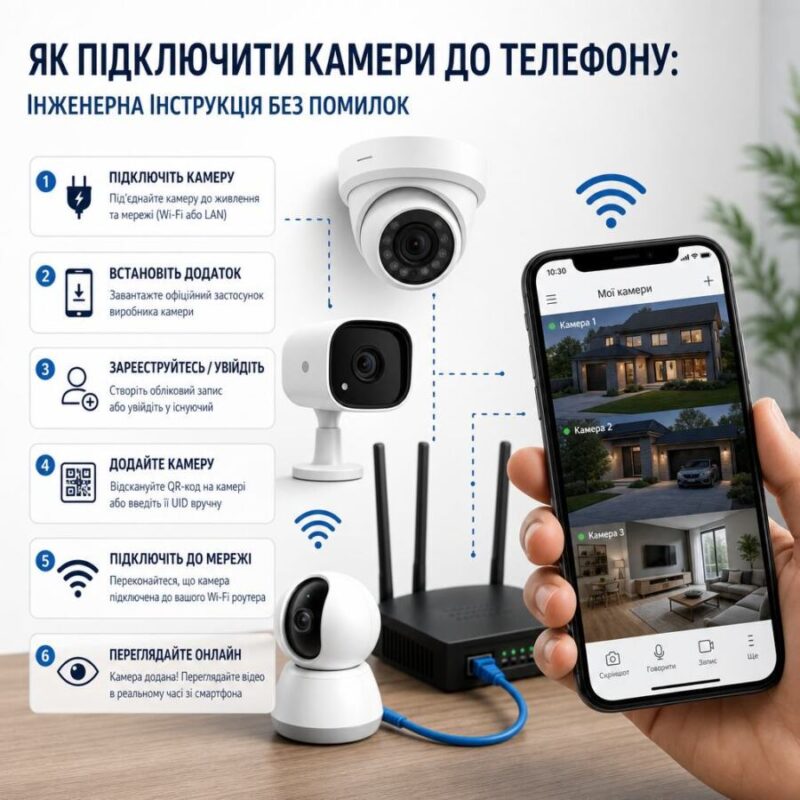
There are two basic scenarios. The first is that the camera works directly via Wi-Fi or LAN and connects to the phone via the cloud or local network. The second is that the cameras are connected to the NVR/DVR, and the phone gets access to the entire complex via the recorder. For an object with 1–2 cameras A direct connection is often sufficient. For a home, store, or warehouse, it is better to install a DVR right away: it is easier to archive recordings, manage multiple channels, and set up remote access to the DVR.
Important point: if the system is built on PoE, the camera receives power and data via a single cable PoE. It's reliable, fewer connections, and fewer failures. Analog cameras require coaxial cable and separate power supply 12V. For IP cameras, UTP Cat5e/Cat6 cables are recommended, and for line stability, it is better not to exceed 90 m per segment without active equipment.
Practical example: in a private house, one Wi-Fi camera was installed at the gate. During the day, it worked normally, but in the evening, due to the weak signal of the router, delays and «freezes» appeared for 10–20 seconds. The solution was to move the access point closer or run a cable line with PoE. In most cases, a wire is more reliable than unstable Wi-Fi.
Marker: After choosing a connection scheme, check whether the camera and phone will work through the same cloud platform or through the same recorder.
What to prepare before setting up
For correct launch, you need to prepare the camera itself, smartphone, internet access and account details. The phone must have an appropriate application for surveillance cameras installed. Most often, this is a mobile client from the manufacturer or universal software if the device supports ONVIF or a cloud platform.
Check the basic things before installation: camera power, cable serviceability, internet availability on the router, Wi-Fi password, device serial number or QR code, correct date and time on the recorder. If the time is wrong, the archive and push notifications may not work correctly. For systems with a DVR, it is advisable to immediately install a hard drive compatible with 24-hour recording.
For stable mobile access, it is worth having a normal network channel: at least 5–10 Mbps for output for one or two cameras in standard quality. If there are more cameras or high resolution is enabled 4 MP and higher, the channel should be wider. On a weak uplink, the phone will connect, but the streaming video will be intermittent.
Separately, check the security: standard passwords like admin/admin should be changed immediately. If the application offers to create a cloud account, use a unique password and two-factor protection, if available. This is also relevant for an online electronics store: the product may be of high quality, but incorrect initial setup will create problems for the user on the first day.
How to connect a camera to a phone step by step
First, connect the camera to power and wait for stable startup. Then install the desired application on your smartphone. After registering an account, choose to add a new device: by QR code, serial number, or automatic search in the local network. If the camera is already connected to the same Wi-Fi, the phone can find it within the local segment.
For a Wi-Fi camera, enter the SSID and password of the 2.4 GHz network if the model does not support 5 GHz. Many users make a mistake here: the camera does not see 5 GHz, and the phone works fine on the same network. This is not a malfunction, but a hardware limitation. If the signal is weak, the camera «falls off» not through the application, but through the radio channel.
For the system via the recorder, connect the DVR/NVR to the router with a cable, go to the network menu and activate the cloud service or P2P. After that, the QR code of the recorder is scanned in the application, the administrator account is added, and the phone gets access to the channels. This is how a typical remote access to the video recorder works without «white IPs» and complex routing.
If you need a local connection without the Internet, the phone and camera must be on the same Wi-Fi network. This option is convenient on site, but does not work outside the building. For remote viewing from another city, you need Internet access on site and correctly activated cloud access.
After adding, open the live video, check the sound, image quality, day/night mode switching, and archive. If there are motion alerts, test them on a real person passing by the camera. In many systems, push notifications only work after separate permission in the phone settings.
| Scenario | Advantage | Risk |
| Camera direction | Quick start, minimum equipment | Less stability, weaker archive |
| Through NVR/DVR | Centralized recording, convenient for multiple cameras | Correct network setup required |
| PoE | Power and data on one cable | Requires a PoE switch or PoE recorder |
Setting up Hik-Connect and XMEye: what to do without unnecessary mistakes
For Hikvision, they usually use Hik Connect. For many budget and mid-range systems, popular XMEye. Both platforms work on a similar principle: you create an account, activate the device, scan the QR code and give the application access to the camera or recorder. That is why the request «hik-connect xmeye settings» most often comes down not to magic, but to properly connecting the service.
For Hik-Connect, in the recorder or camera menu, you need to activate the access platform, set a verification code or confirmation code, and then bind the device to the account in the application. If the code is incorrect, the device will not bind even with a working Internet connection. For XMEye, the logic is similar: the cloud service is activated, after which the device is added via QR or serial number.
A common mistake is adding a camera to the app without activating the cloud on the device itself. The second mistake is entering the wrong region in the mobile client. The third is using the same account on multiple phones without configured access rights. In business, this is critical: the administrator should see all channels, and security should only see the necessary cameras.
If there is a picture, but the archive does not open, check the disk in the recorder, formatting, time zone and storage period. If the video opens only from Wi-Fi, but not from mobile Internet, then the cloud channel is not activated or the router does not provide access to the network. In this case, check DNS, NAT and the status of the provider, but for most users it is enough to restart the router and check the device binding.
Common connection errors and how to avoid them
The most common problem is low power. For cameras on 12V It is important not to exceed the permissible voltage drop on a long cable. If the power supply is cheap or the line is too long, the camera starts up, but at night the IR illumination drops the voltage and the device reboots. For systems on 220V High-quality surge protectors should be installed across power supplies.
The second mistake is choosing the wrong Wi-Fi network. Cameras often only work in the 2.4 GHz range, and the user connects them to 5 GHz and wonders why «the application does not see the device.» The third — lack of a backup Internet channel on-site. If the camera needs to be available at all times, consider a backup 4G router or UPS for the router and recorder.
The fourth problem is open ports unnecessarily. If you use a cloud service, you should not manually expose extra ports to the Internet. This increases the risk of unauthorized access. It is better to use the manufacturer's standard platform and a complex password. The fifth mistake is the lack of firmware updates. An old version may cause failures in mobile access and notifications.
For facilities with unstable power supply, it is advisable to install a UPS at least on the router and the recorder. This allows you to save the recording and not lose connection during a short power outage. If the system is critical, for example, for a store or warehouse, it is advisable to have a separate backup power supply and check how many minutes the entire line works in offline mode.
How to improve stability, security, and video quality
Image quality depends not only on megapixels, but also on optics, lighting, and bitrate. Camera 4 MP with normal optics often gives practically better results than "overblown" marketing models without proper settings. For the street, it is important to choose the right viewing angle so that the license plate or face is not lost at the edges of the frame.
To make phone access work quickly, it is advisable to set the main stream in the recorder for recording and the substream for mobile viewing. This reduces the load on the Internet and makes viewing smoother. If the phone is old or the channel is slow, reduce the viewing resolution in the application.
Security is based on three things: a complex password, a separate account for each user, and up-to-date firmware. For business, you can’t leave one password «for everyone.» For home use, it’s a good idea to check the list of connected devices and login history at least once every few months. If the camera supports encryption, turn it on.
When you need a reliable kit, it is more profitable to buy cameras, a recorder, power supplies, cables and protection in one place than to assemble a system from random compatible elements. This is how a professional online electronics store works: selecting equipment for the task, not for the beautiful characteristics on the box.
To properly connect cameras to your phone, you need to not just install the app, but also properly assemble the entire line: camera, power, network, recorder, cloud service, and access rights. For stable operation, choose PoE or a high-quality wired connection, check 2.4 GHz for Wi-Fi models, activate the manufacturer's official service, and change passwords immediately. Then viewing will be fast, the archive will be accessible, and remote control will work without random failures.