
Useful tips
Viewing cameras on your phone: settings via P2P

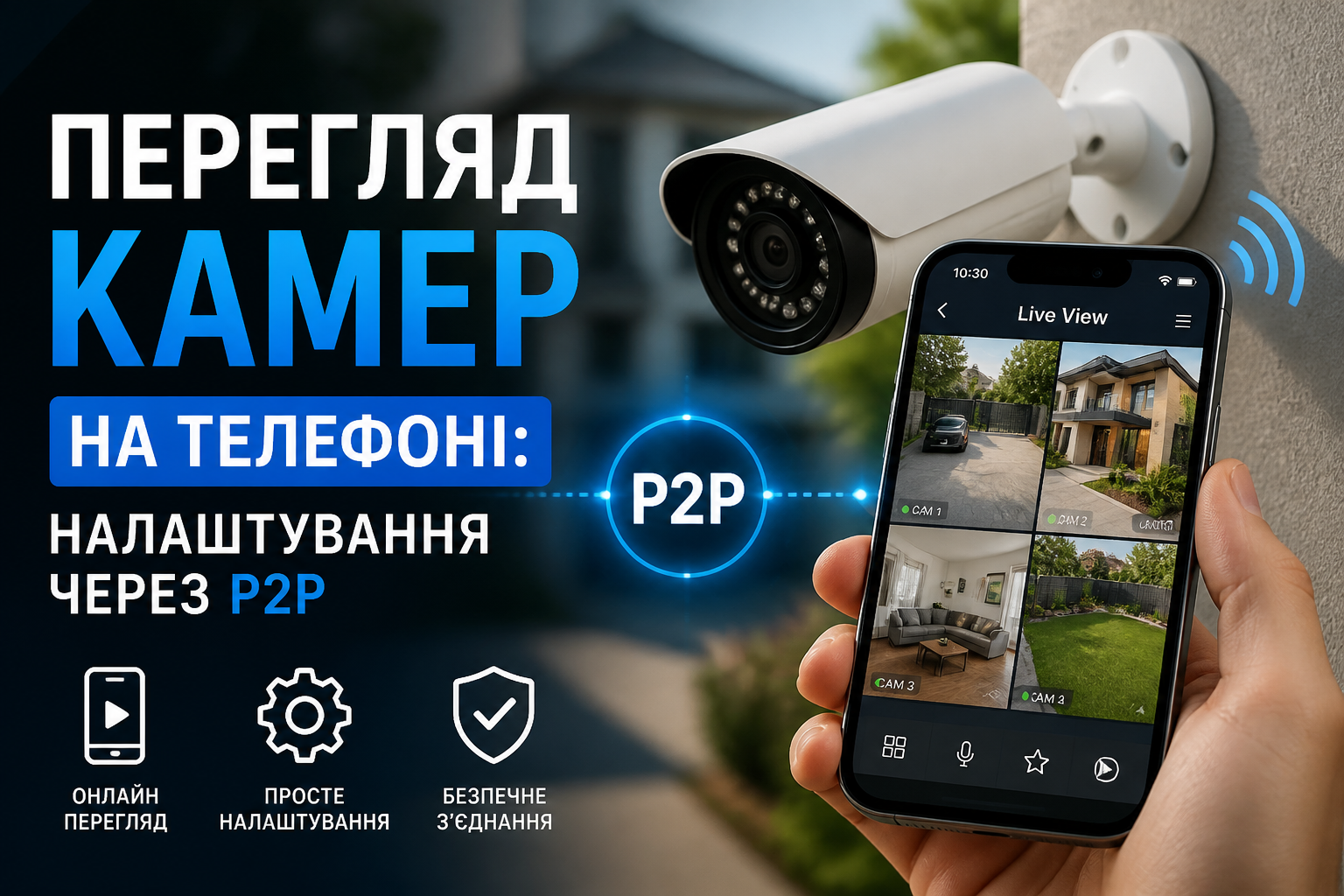
View cameras on your phone via P2P is the easiest way to gain remote access to your video surveillance system without a static IP address, port forwarding, and complicated router setup. The recorder or IP camera establishes a secure outbound connection to the manufacturer's cloud server, and the mobile application connects to the device using its unique identifier.
How does viewing cameras on your phone via P2P work?
In the traditional scheme, external connection requires a "white" IP address and opening network ports. The P2P service eliminates this need: the device itself registers in the cloud, and the user adds it to the application using a QR code or serial number.
The connection can be established directly between the smartphone and the recorder. If this is prevented by NAT or ISP rules, the video stream is transmitted through an intermediate server. In the second case, a slightly higher delay is possible, especially when viewing multiple cameras in high resolution.
| Parameter | Recommended value |
|---|---|
| Output channel speed at the facility | From 2 Mbps for one Full HD camera |
| Mobile network | Stable 4G/5G or Wi-Fi |
| Video codec | H.265 to save traffic |
| Mobile stream | 640×360 or 704×576, 8–15 fps |
| Approximate traffic at 512 Kbps | About 230 MB per hour |
Setting up a P2P connection
- Connect the system to the Internet. The recorder or camera must obtain an IP address from the router. It is usually sufficient to enable DHCP in the network settings.
- Enable P2P. Open the Network, Cloud Service, or Platform Access section. The status should change to Online. If it shows Offline, check your gateway, DNS, and system time.
- Install the official app. Use the application specified by the camera or recorder manufacturer. Third-party applications may not support the proprietary P2P protocol.
- Add a device. Scan the QR code from the menu or label, enter the verification code and device account details.
- Check remote access. Turn off Wi-Fi on your smartphone and open the video via mobile internet. This test confirms that the external connection is working.
Safely view cameras on your phone
The convenience of P2P does not cancel the basic security rules. The standard administrator password must be replaced with a unique combination of at least 12 characters. For daily access, it is better to create a separate user with viewing rights, but without the ability to change network settings or delete entries.
You should regularly update your firmware and mobile app, activate two-factor authentication if available, and do not publish the QR code or device serial number. Old employee or installer accounts should be deleted immediately after work is completed.
Typical problems and solutions
Offline status is most often caused by incorrect DNS. You can specify servers 1.1.1.1 or 8.8.8.8, checking the gateway address first. If the video is interrupted, you should activate an additional stream with a lower bitrate, reduce the frame rate, and disable maximum quality for mobile viewing.
An error when adding a device often means that it is already linked to another cloud account. In this case, it will need to be unlinked by the previous owner or an official reset according to the manufacturer's procedure. System time differences can also block authorization, so it is advisable to enable NTP synchronization.
Practical advice: Set up an additional stream for your smartphone with a bitrate of 256–512 Kbps, and leave the main stream for recording at maximum quality. This will reduce latency and mobile traffic costs without degrading the archive.